
Creating a State Tree Example
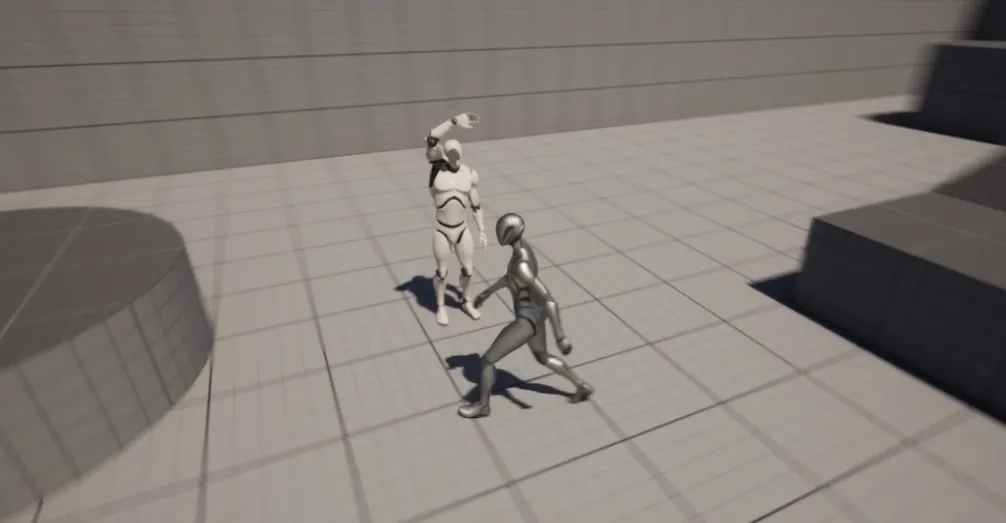
This walkthrough builds the NPC from the part 3 video tutorial: a mannequin that stands idle and waves at the player when they step into a trigger volume. It’s the smallest useful State Tree you can build and it covers every mechanic that bigger trees are built out of.
1. Create the NPC Actor
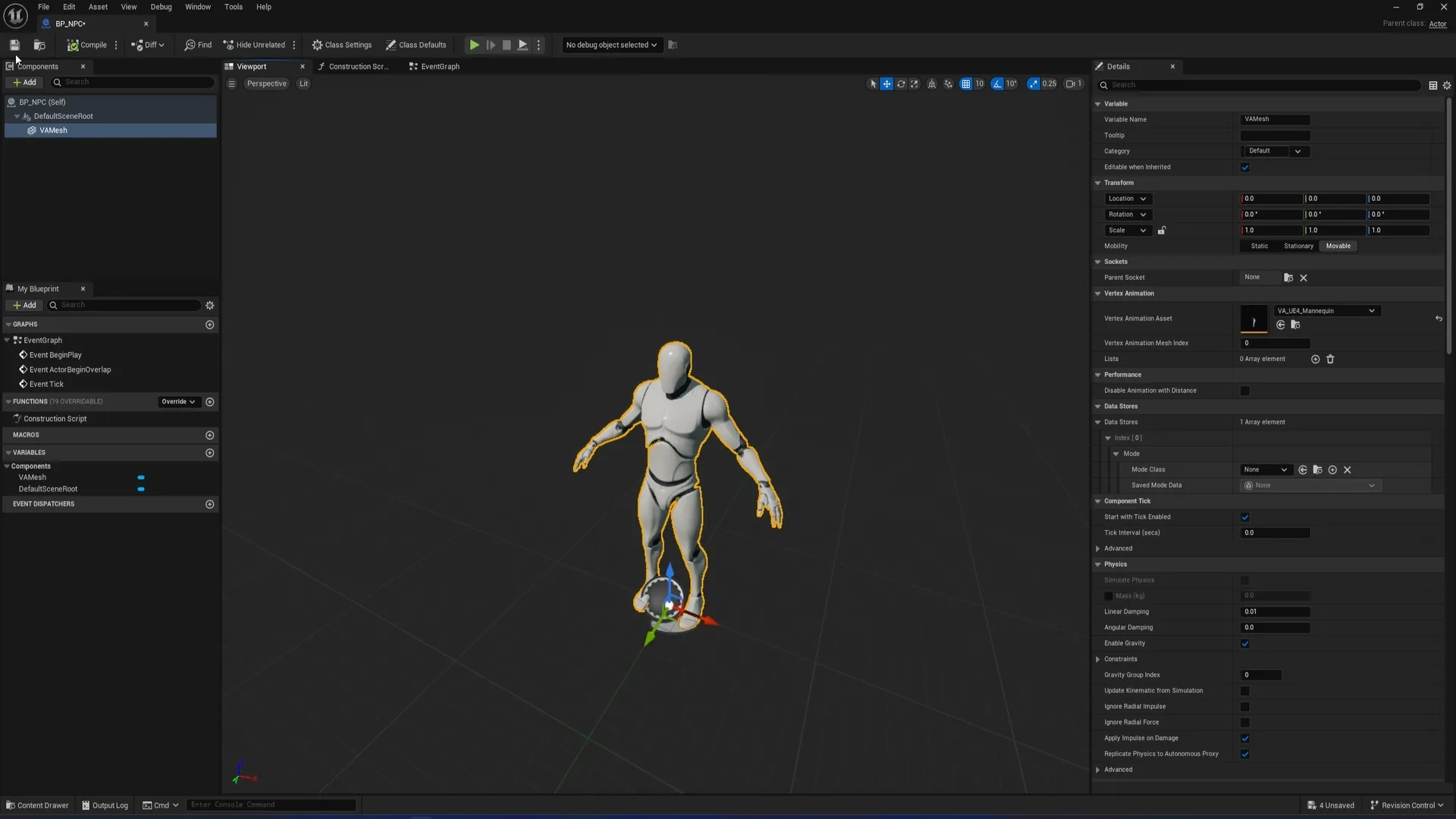
Section titled “1. Create the NPC Actor”State Trees run on a VA component. For a single actor, put that component on a Blueprint.
- In the Content Browser, right-click → Blueprint Class → Actor. Name it
BP_NPC.- Open it. Add a Vertex Animation Mesh Component.
- Select the component and set its Vertex Animation Asset to your mannequin VA Asset Collection.
- Compile, save, and drop an instance into your level.
2. Create the State Tree Asset
Section titled “2. Create the State Tree Asset”
- In the Content Browser, right-click → Artificial Intelligence → State Tree.
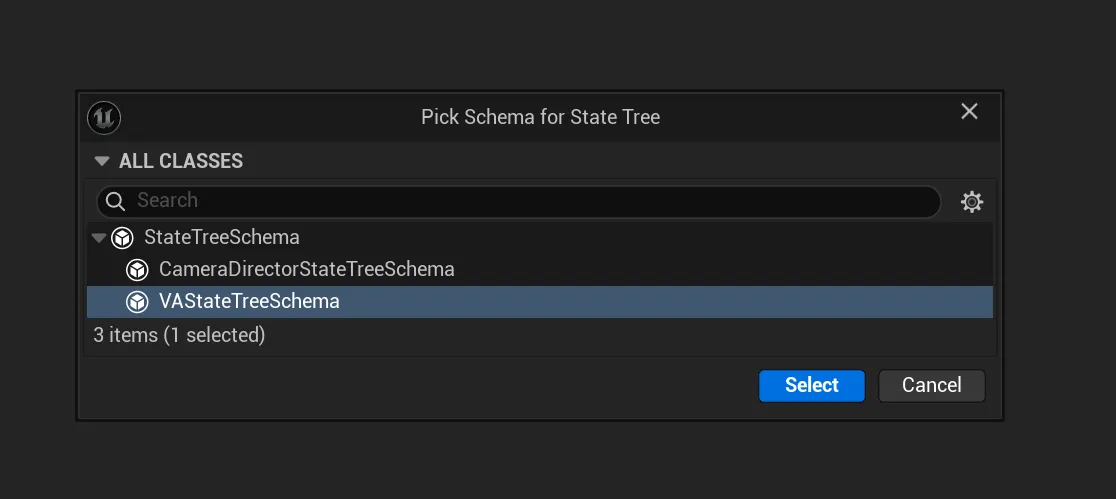
- A dialog will ask which schema to use. Pick VA StateTree Schema. This makes the tree compatible with the VA instance system and exposes the VA-specific Tasks, Conditions, and Evaluators.
- Name the asset using the
StateTree_prefix. We’ll call this oneST_NPC.
3. Set the Collection in Asset Details
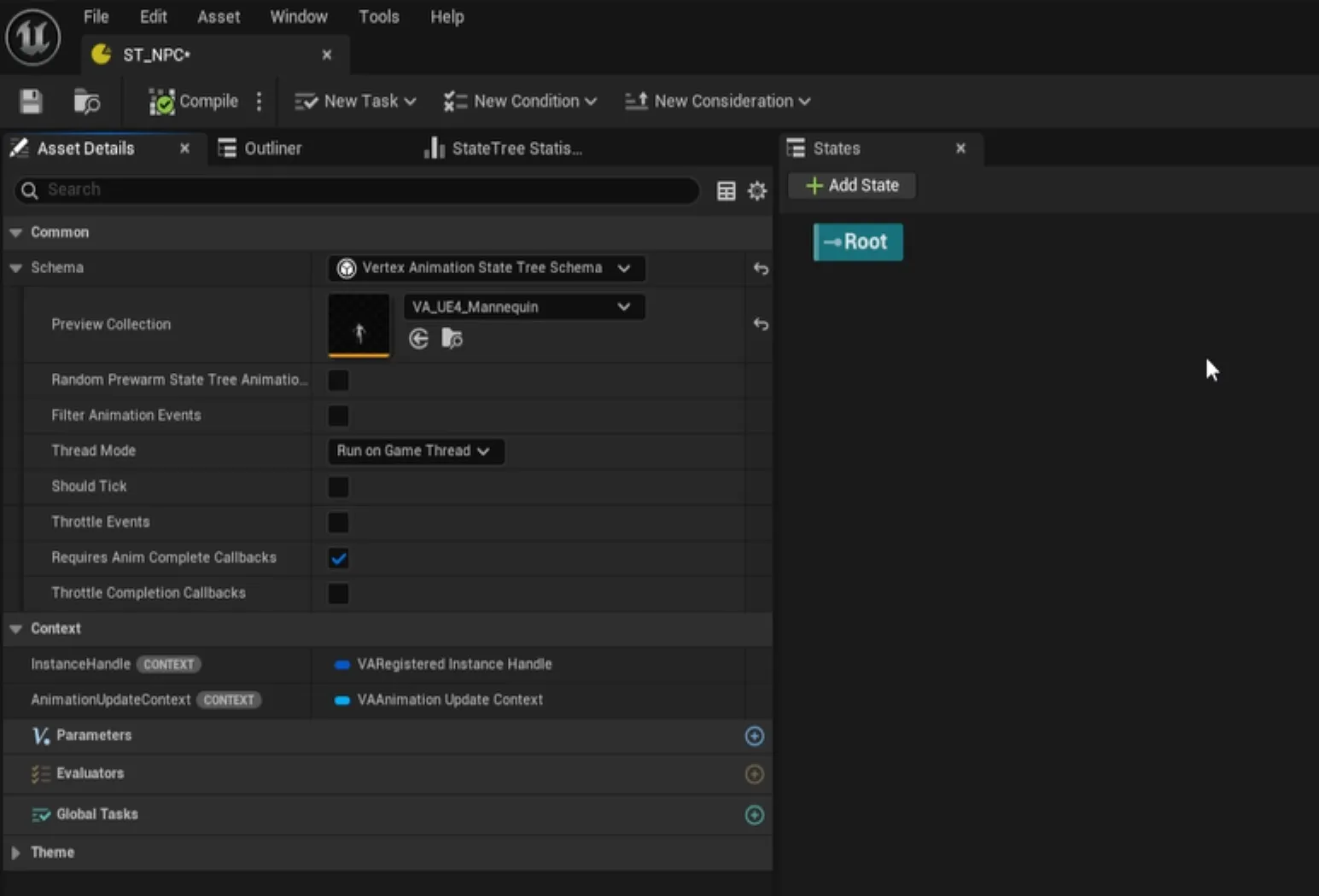
Section titled “3. Set the Collection in Asset Details”Every VA State Tree needs to know which Asset Collection it targets. Setting this up initially makes all animation pickers in the tree context-sensitive. Dropdowns will only show animations that exist in your collection.
- Open
ST_NPC. Find the Asset Details panel (top-right by default).- Set Preview Collection to the same mannequin collection you put on
BP_NPC.
4. Add the Idle and Wave States
Section titled “4. Add the Idle and Wave States”
- Right-click the root → Add State. Name it
Idle.- With
Idleselected, expand the Tasks section and click +. Pick Play Vertex Animation.- Set Animation to your idle clip and enable Loop. The NPC will now stand idle forever while this state is active.
- Add a sibling state called
Wave. Add a Play Vertex Animation task, pick the wave clip, and leave Loop off. This lets the state complete when the clip finishes.
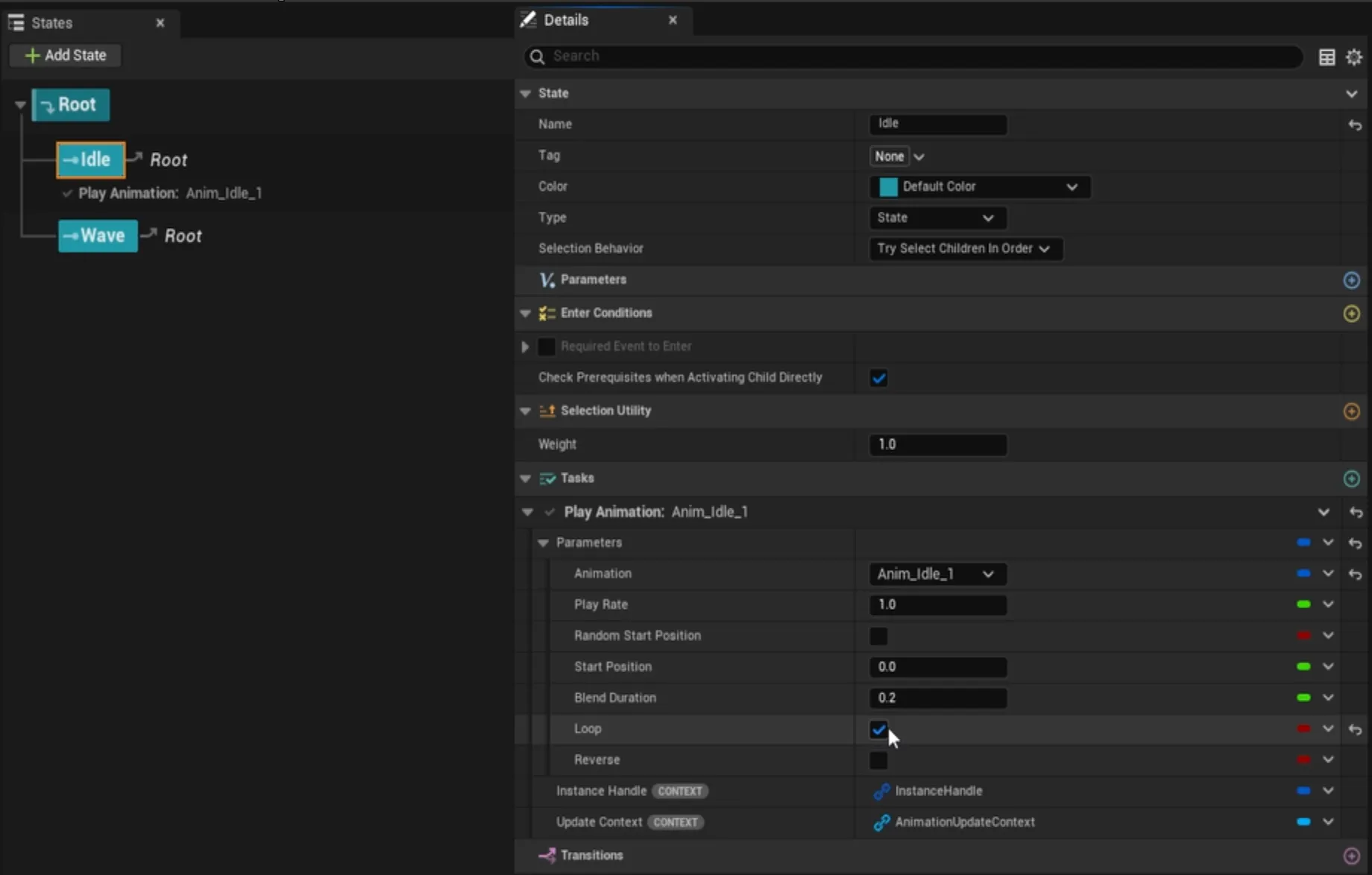
Press Compile. The NPC in your level will start idling immediately. State Trees update in real time while the editor is open.
5. Transition to the Wave State
Section titled “5. Transition to the Wave State”Idle should loop indefinitely and only hand over to Wave when a gameplay tag event fires.
- Create a Gameplay Tag
Mannequin.Wave(Project Settings → Project → Gameplay Tags, or add it inline in the Event Tag picker).- Select
Idle. In the Transitions panel click +.- Set Trigger =
On Event, Event Tag =Mannequin.Wave, Transition To =Wave.- On
Wave, add a transition: Trigger =On State Completed, Transition To =Idle.
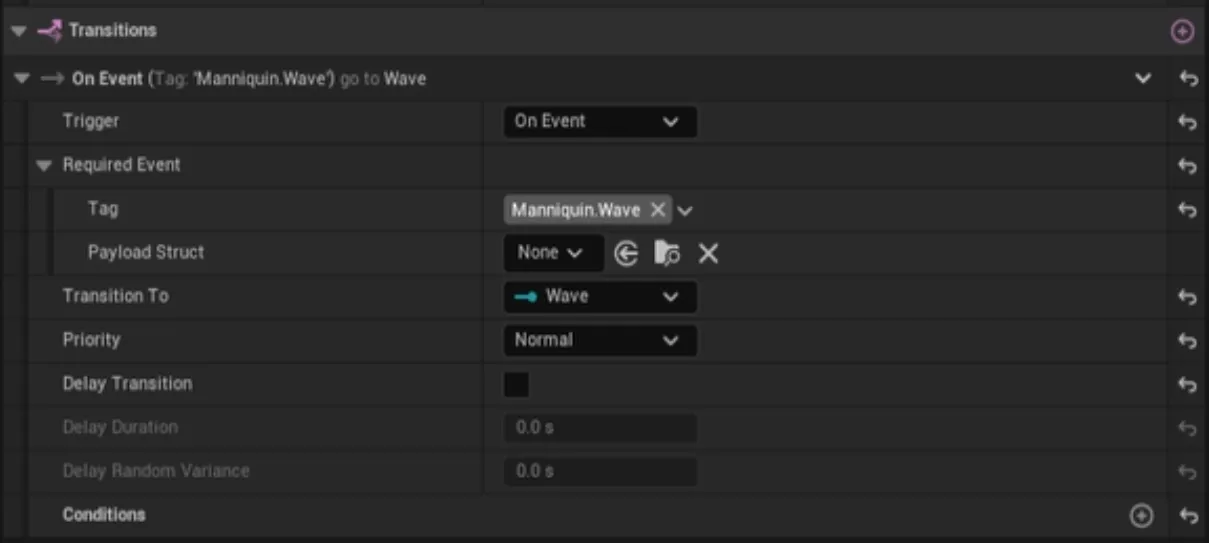
Compile. The tree now sits in Idle and only moves to Wave when something broadcasts the Mannequin.Wave tag at it.
Tip:
On State Completedis also how you chain states into a fixed loop (Idle → Wave → Idle) if you don’t need an external trigger. See Transitions for all the trigger types.
6. Trigger the Event from the Level Blueprint
Section titled “6. Trigger the Event from the Level Blueprint”The last piece is the code that fires the event when the player overlaps the trigger.
- Add a Trigger Volume to the level and select it.
- Open the Level Blueprint. With the trigger still selected, right-click in the graph and add On Actor Begin Overlap.
- From Other Actor, Cast To your player character class. Branch on the cast result.
- Get a reference to your
BP_NPCactor (any method works. A variable on the level, Get Actor Of Class, etc.).- Off the reference, call Get VA Mesh to retrieve the Vertex Animation Mesh Component.
- Off the component, call Broadcast Anim Event.
- For the event’s Tag, plug in a Make Literal Gameplay Tag set to
Mannequin.Wave.
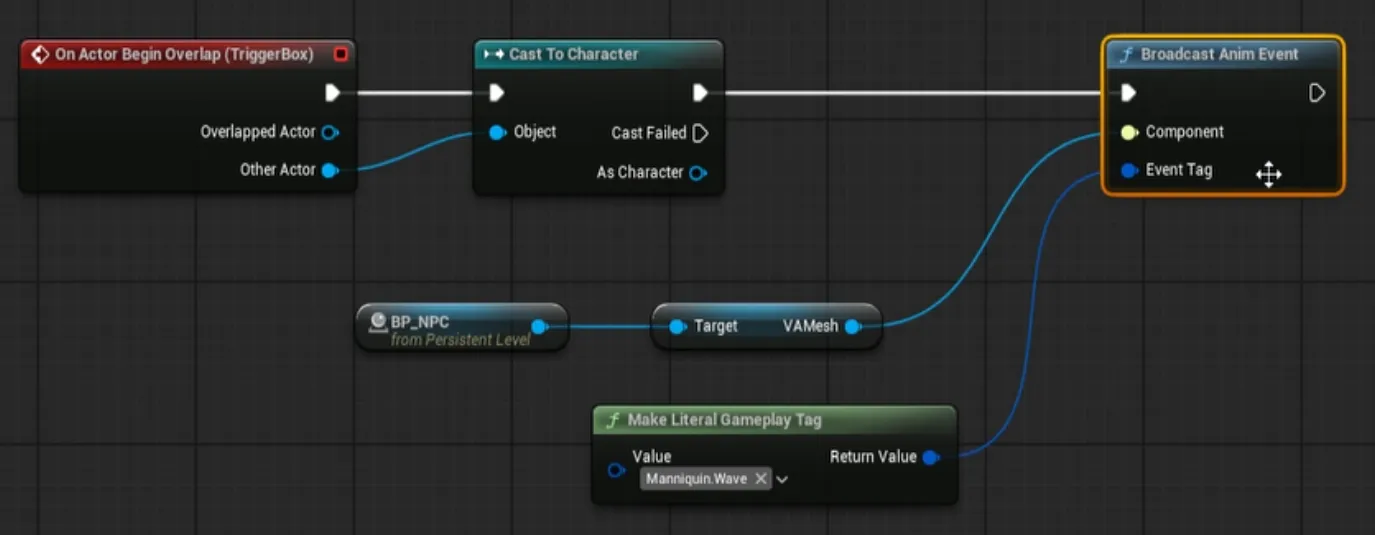
Broadcast Anim Event is one of three broadcast nodes on the VA component. See Triggering Events for Broadcast Anim Event With Instances (target specific instance handles) and Broadcast Throttled Event (spread the per-instance dispatch across frames, good for large crowds).
7. Test It
Section titled “7. Test It”Press Play and walk your character into the trigger. The NPC waves, finishes the clip, and returns to idle. Re-enter the trigger and it waves again.
Tip: Run
slomo 0.2in the console if the animations play too fast to see the transitions cleanly while you’re testing.
Where to Go Next
Section titled “Where to Go Next”Vertex Animation Studio ships a working example State Tree that goes much further than this one. Open Plugins/VertexAnimation/Content/DemoMap/Blueprints/ and look at StateTree_SoccerFan for a crowd-scale tree with reaction states, weighted random idles, and per-instance parameters.
- Tasks Reference - every built-in VA task, with parameters.
- Transitions - completion vs event vs tick, and transition conditions.
- Triggering Events - broadcasting events from Blueprints and C++, including the throttled variant for large crowds.