
Schema & Settings
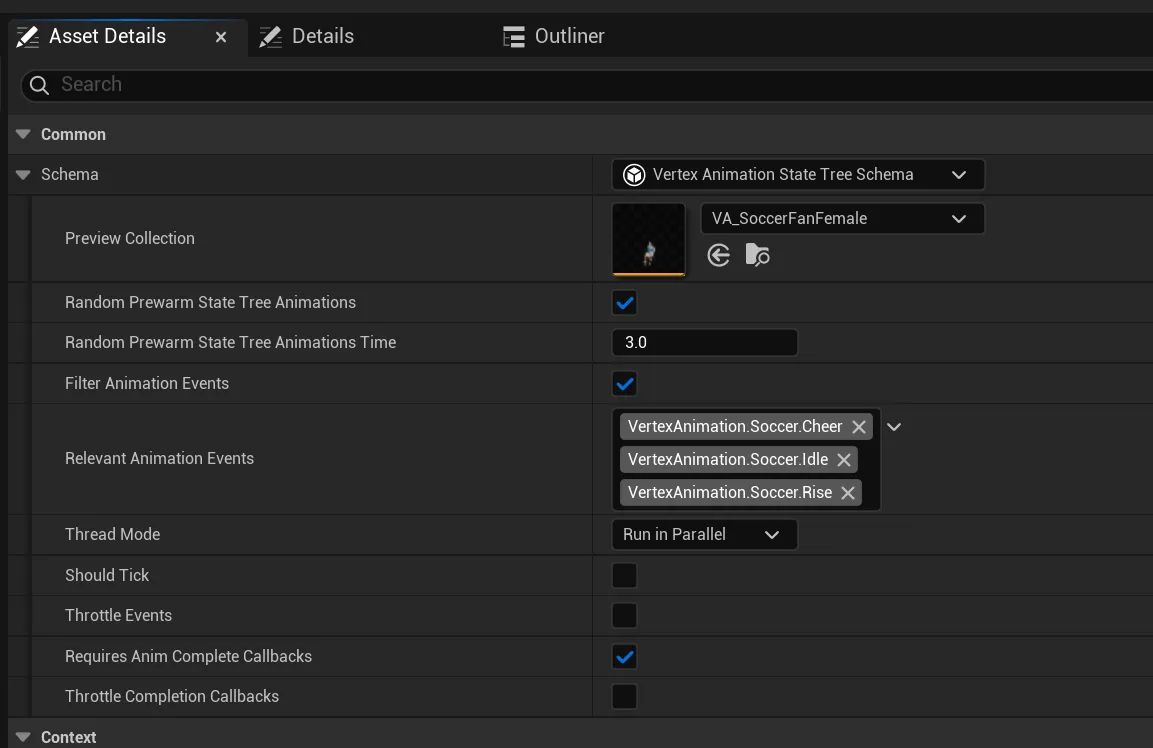
The VA StateTree Schema is the configuration on every State Tree asset that uses Vertex Animation. It exposes the per-tree settings that govern how the tree is ticked, how events are filtered, and how animation callbacks are throttled.
Every tooltip on this page is reproduced from the source (VAStateTreeSchema.h) so what you read here matches what the editor shows.
General
Section titled “General”Preview Collection
Section titled “Preview Collection”Type:
VA Asset Collection(object reference). Read only at runtime.The VA Asset Collection the tree uses for editor preview and animation compatibility checks. Setting this makes animation pickers inside the tree context-sensitive. Dropdowns are filtered to the animations that exist in this collection.
Random Prewarm StateTree Animations
Section titled “Random Prewarm StateTree Animations”Type:
bool. Default:false.If true, the state tree will prewarm its initial animations up to
RandomPrewarmStateTreeAnimationsTime. This makes it so all your instances start out of sync. This can greatly improve performance as instances will not call their animation completion events on the same frames.Enable this on any tree you plan to use for crowds. It’s the single biggest performance win for large instance counts.
Random Prewarm StateTree Animations Time
Section titled “Random Prewarm StateTree Animations Time”Type:
double(seconds). Default:2.0.Amount of time to prewarm and stagger the state tree starts by (See
bRandomPrewarmStateTreeAnimations).Visible only when Random Prewarm is enabled. Each instance’s tree is advanced by a random value between
0and this amount when it starts.
Events
Section titled “Events”Filter Animation Events
Section titled “Filter Animation Events”Type:
bool. Default:false.When enabled, only animation events whose tags appear in Relevant Animation Events are dispatched to this tree. Events that don’t match are discarded before reaching any listening state.
Turn this on if your project broadcasts many unrelated gameplay events on VA Mesh Components and you want to reduce per-event overhead.
Relevant Animation Events
Section titled “Relevant Animation Events”Type:
FGameplayTagContainer.The tag allow-list used by Filter Animation Events. Tag hierarchy applies. Adding
MannequincatchesMannequin.Wave,Mannequin.Cheer, etc. Hidden when Filter Animation Events is off.
Performance
Section titled “Performance”Thread Mode
Section titled “Thread Mode”Type:
EVAAnimationUpdateThreads(enum). Default:Run on Game Thread.Controls where the tree’s updates execute:
- Run on Game Thread - simplest; safe for any Blueprint logic called from tasks.
- Run in Parallel - tree updates execute via
ParallelForloops across worker threads. “This state tree will execute using ParallelFor Loops. This requires thread safety. Only use if you are sure your logic is correct.”Default to Game Thread unless you have profiled a need to parallelise and have verified every task and condition is thread-safe. The shipped soccer fan tree runs in Parallel because its logic only reads/writes its own state tree parameters.
Should Tick
Section titled “Should Tick”Type:
bool. Read-only in editor. Default:false.Internal flag indicating whether the tree needs per-frame ticking. Computed from the tasks and evaluators in use. You don’t set this directly.
Throttle Events
Section titled “Throttle Events”Type:
bool. Default:false.Master switch for event throttling. When a single event fires on a large number of instances in the same frame (for example, a goal-cheer tag broadcast to every fan in a stadium), the throttle spreads the per-instance dispatch across multiple frames instead of processing them all at once. Good for events that fire on many instances simultaneously; not for events that fire often.
Throttle Events Globally
Section titled “Throttle Events Globally”Type:
bool. Default:false. Visible only when Throttle Events is on.If
true, a single throttle configuration (Instances Per Update) applies to all event tags this tree receives. Iffalse, each tag can have its own throttle configuration via Event Throttle Settings.
Global Event Throttle Settings
Section titled “Global Event Throttle Settings”Type:
FVAThrottledUpdateSettings. Visible only when Throttle Events and Throttle Events Globally are both on.The throttle settings used for every event. The main field is Instances Per Update (default
3000), which is the maximum number of instances dispatched in a single frame. Remaining instances roll over to subsequent frames.
Event Throttle Settings
Section titled “Event Throttle Settings”Type:
TMap<FGameplayTag, FVAThrottledUpdateSettings>. Visible only when Throttle Events is on and Throttle Events Globally is off.Per-tag throttle configuration. Add an entry for each tag you want to spread across frames; omitted tags dispatch to every instance on the broadcast frame.
Requires Anim Complete Callbacks
Section titled “Requires Anim Complete Callbacks”Type:
bool. Default:true.When
true, the tree subscribes to animation completion soOn State Completedtransitions can fire. Set tofalsefor trees that only use event-based transitions. Saves a callback per animation end, per instance. Leaving this on is safe and has no effect on trees that don’t use completion transitions.
Throttle Completion Callbacks
Section titled “Throttle Completion Callbacks”Type:
bool. Default:false. Visible only when Requires Anim Complete Callbacks is on.Spreads completion callbacks across frames when many instances finish their animations on the same frame. Useful when a large crowd plays identical-length animations and would otherwise fire all of their completion callbacks in lock-step.
Completion Throttle Settings
Section titled “Completion Throttle Settings”Type:
FVAThrottledUpdateSettings. Visible only when Throttle Completion Callbacks and Requires Anim Complete Callbacks are both on.The Instances Per Update setting applied to completion callbacks.
Project Settings (Global)
Section titled “Project Settings (Global)”The plugin adds a settings section under Project Settings → Plugins → Vertex Animation Studio - State Trees. These values apply project-wide and are saved to DefaultVertexAnimation.ini.
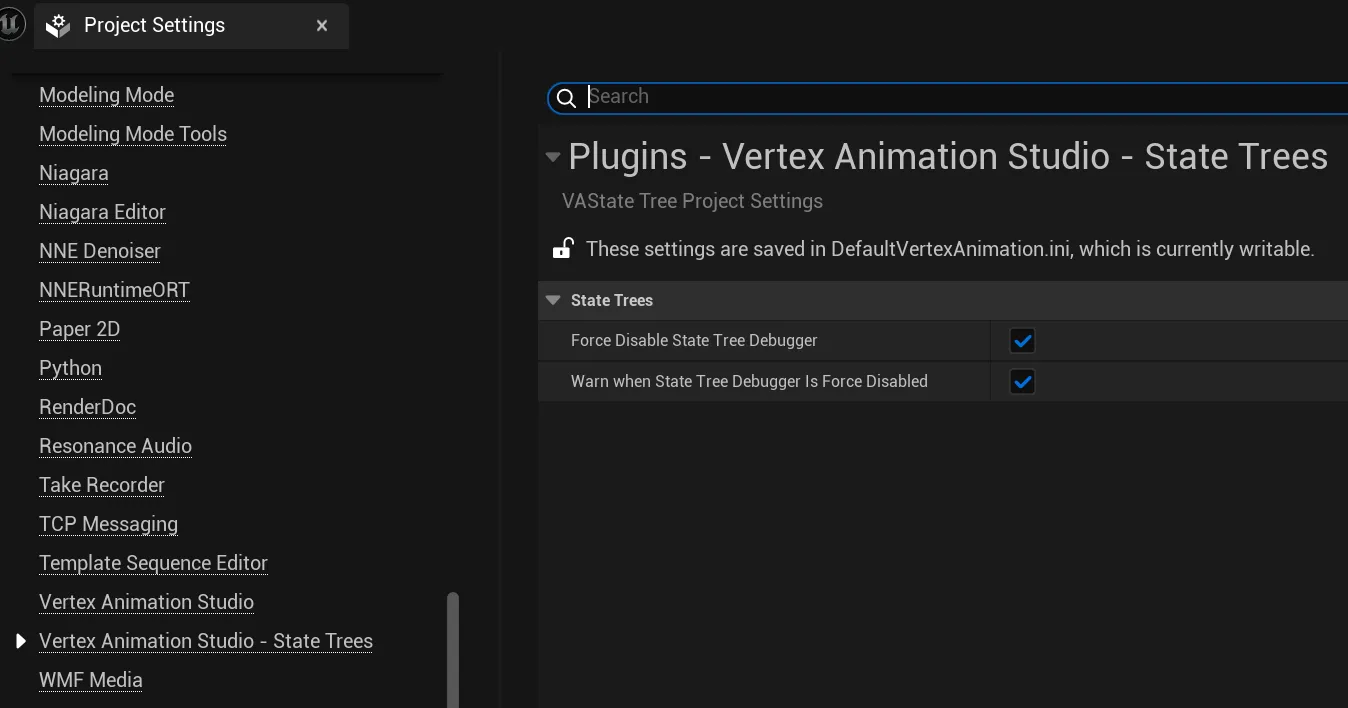
Force Disable StateTree Debugger
Section titled “Force Disable StateTree Debugger”Type:
bool. Default:true(debugger disabled).Unreal’s StateTree Debugger captures per-instance execution traces for the Rewind Debugger. For large VA crowds this is extremely expensive. Every instance streams debugging data every frame. Keeping this enabled (debugger off) is strongly recommended unless you are actively debugging a small scenario.
Warn When StateTree Debugger Is Force Disabled
Section titled “Warn When StateTree Debugger Is Force Disabled”Type:
bool. Default:true.Prints a warning to the log when the debugger is suppressed. Useful feedback for developers used to the normal StateTree debugging flow so they don’t spend time wondering where their traces went.
Config File Entries
Section titled “Config File Entries”The same settings are written to Config/DefaultVertexAnimation.ini:
[/Script/VertexAnimationStateTrees.VAStateTreeProjectSettings]bForceDisableStateTreeDebugger=TruebWarnWhenStateTreeDebuggerIsForceDisabled=TrueCheck this file into source control so the whole team gets the same defaults.
Performance Checklist
Section titled “Performance Checklist”When scaling a crowd past a few hundred instances:
- ✅ Random Prewarm StateTree Animations ON. Stops lock-step animation and spreads completion callbacks across frames.
- ✅ Force Disable StateTree Debugger. Mandatory for crowds. Already the default.
- ✅ Filter Animation Events ON. Trim events down to the tags each tree actually uses.
- ✅ Throttle Events Per Tag. Spread large-crowd events across frames so thousands of instances don’t all react on the same frame.
- ⚠️ Thread Mode = Run in Parallel. Profile first; only move off Game Thread if you need the headroom, and audit every task and condition for thread safety.
See Also
Section titled “See Also”- Overview - how State Trees fit into the plugin.
- Transitions - event-based transitions governed by these settings.
- Triggering Events - broadcasting the events that Throttle/Filter settings apply to.
- Troubleshooting - performance and common issue fixes.